
AT A GLANCE
Open the gear beside the bottom sword button. Select targets, set the range from 20 to 150, and choose free movement or a fixed position. Enable automatic pickup, check your item and equipment-quality filters, then check and drag skills into order. Set recovery potions through the separate potion-bar gear; use Boost Items to renew buffs automatically. Press F or click Cancel to stop Auto Battle.
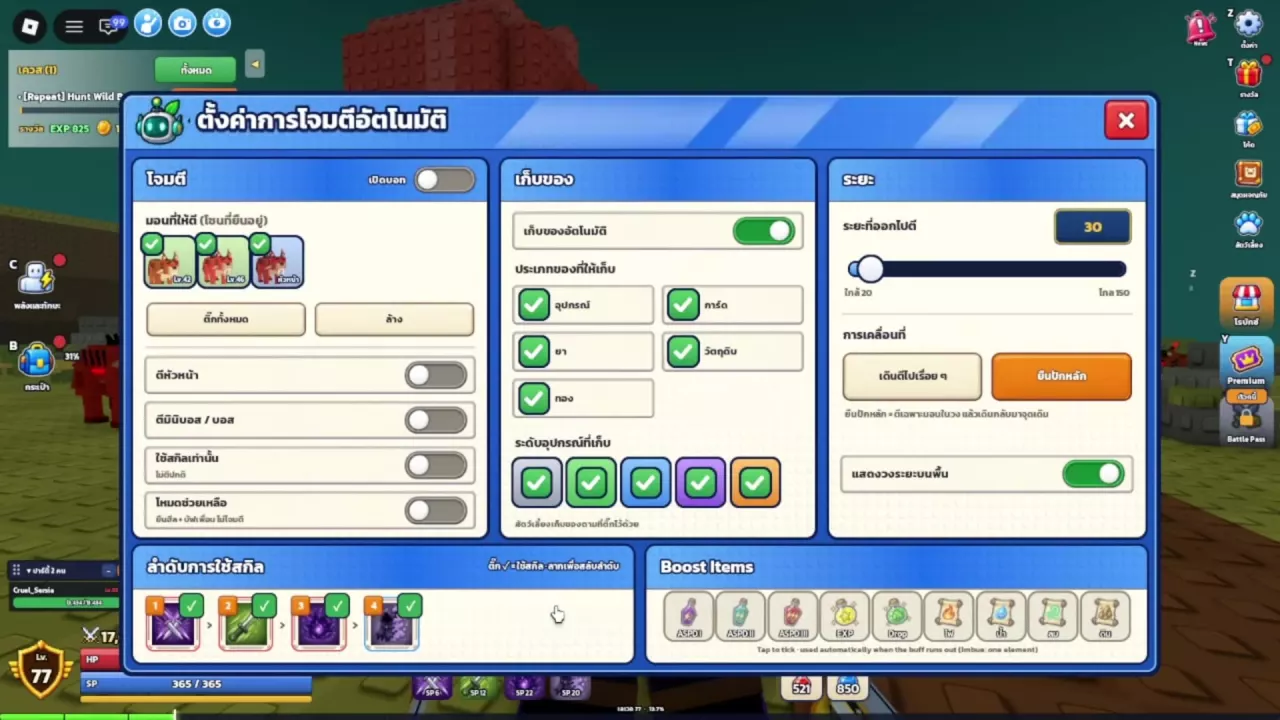
Choose Targets and Toggle Auto Battle
- Click the small gear beside the sword-shaped Auto Battle button at the bottom of the screen.
- Check the monsters you want to fight in the current area’s target list. Uncheck unwanted targets, or use the select-all and clear controls to change the list quickly.
- Choose your range and movement mode, then configure pickup, skills, and supplies as described below.
- Enable the main Auto Battle switch and close the menu to begin automatic pursuit and combat.
Press F to toggle automatic combat. While it is running, you can also stop it by clicking the bottom combat button labeled Cancel.
For a hunt focused on one monster, clear the target list and check that monster instead of leaving every target selected. The menu also includes boss-target, skills-only, and support-mode switches.
Free Movement or a Fixed Position
The range slider runs from 20 to 150. Use the movement buttons beneath it to decide whether your hunting area follows you or stays centered on a set position.
| Movement option | Behavior | When to choose it |
|---|---|---|
| Left: free movement | The range circle moves with your character. | When you want to move through an area while fighting selected targets. |
| Right: fixed position | Your character pursues enemies around the set position, then returns. | When you want to keep hunting around one spot. |
For a broad roaming setup, free movement with a range of 150 is one option. For a smaller hunting area, fixed position with a range of 30 is another. These are example configurations; choose the range to fit how widely you want to pursue targets.
The ground range circle has its own display toggle. Turn it on to see the area while adjusting your setup, or hide it independently.
Filter Pickups by Item Type and Equipment Quality
Enable automatic pickup in Auto Battle settings, then check the categories you want: equipment, cards, potions, materials, and gold.
Equipment also has five quality filters: gray, green, blue, purple, and orange. A checked quality remains eligible for pickup.
- Collect everything: enable all five item categories and all five equipment qualities. This suits hunts where you want materials, supplies, and lower-quality equipment as well as rarer drops.
- Collect only purple and orange equipment: keep equipment enabled, uncheck gray, green, and blue, and leave purple and orange checked. Choose the other item categories separately. This reduces the lower-quality gear you collect without requiring you to turn off materials, cards, potions, or gold.
Use the inventory, selling, and storage guide to manage the equipment you keep. For pet acquisition and pickup features, see pets and mounts.
Enable Skills and Arrange Their Order
- Find the skill row near the bottom of Auto Battle settings.
- Check each skill you want automatic combat to use.
- Drag the skill icons into your preferred casting order.
The checkboxes control which skills are enabled; the icon order sets their casting order. Choose the skills you want included before arranging them.
For individual effects, SP costs, level conditions, and upgrade controls, use the skills guide.
Set Recovery Potions and Renew Buffs
Keep the consumables you want to use in your inventory. Recovery potions and buff items use separate settings and different triggers.
Recovery potions
Open the gear beside the bottom potion bar to access recovery-potion settings. Recovery supplies follow percentage thresholds. For example, a configuration can use below 50% for the red potion and below 30% for the blue potion; these are example thresholds, not required settings.
Buff renewal
Open the sword-button gear and find Boost Items. Check the items you want to renew automatically when their effects expire. The options include ASPD I, ASPD II, ASPD III, EXP, and Drop. Selecting EXP or Drop enables automatic reuse of the corresponding buff item when its buff ends.
For elemental imbues, select only one of fire, water, wind, or earth. The selected imbue can also renew when its effect ends.
Choose automatic renewal for buffs you intend to keep consuming throughout the hunt. Use the potion guide for prices, effects, and supply choices, or the weapon imbue guide for buying elemental scrolls and setting up their automatic use.
Stop Auto Attack Before Dodging
Automatic pursuit can pull your character back toward an enemy while you are trying to escape an attack. Turn Auto Battle off before moving to safety, especially when a boss mechanic requires you to hold a particular position.
During Whitefang Sabertooth’s Apex Roar, press F to stop automatic combat, then move into the green safe circle. Keeping pursuit active can send you back toward the boss and out of safety.
See the Whitefang Sabertooth fight guide for the full encounter, including its other attack warnings and preparation.